WPML: How to Disable Automatic Translation Permanently



You turned off automatic translation in WPML. Then you published a new page, and a translation job showed up anyway. The setting usually did work. Something else is still sending content to translation: the translation mode, jobs that were already in the queue, or automatic translation inside the translation editor.
Where you switch this off depends on your WPML version. In WPML 5 it is one menu on the dashboard. In WPML 4 the setting moved between releases, and turning off the mode alone does not always stop it. This guide covers both, starting with WPML 4.
Short answer
WPML 4.7 and 4.8: WPML → Translation Dashboard → turn off Translate Everything Automatically at the top of the page. Then go to WPML → Settings → Multilingual Content Setup, choose No, wait for me to start the translation and save.
Older WPML 4.5 and 4.6: WPML → Settings → Translation Mode → Change mode → Translate what you choose → save.
WPML 5: WPML → Translations → Dashboard → three-dot menu on the Translate Everything Automatically card → Turn off Translate Everything.
Then, in every version: cancel unwanted jobs in the queue and test with one small edit. Your existing translations stay published.
Why WPML Keeps Translating After You Turn It Off
There are four common reasons. Check them in this order.
- Translate Everything is still on. In this mode WPML translates new and edited content in the background. Cancelling one job does not stop the next one. You need to turn off the mode itself.
- Old jobs are still in the queue. Jobs created before you changed the mode can still be waiting or in progress. When they finish, it looks like automatic translation is still running.
- The Translation Editor still translates automatically. In WPML 4 there is a separate setting that translates content as soon as someone opens the Translation Editor. It stays on even after you turn off Translate Everything.
- Another tool sends content to translation. A translation service, a teammate with the Translation Manager role, or an add-on with its own “translate new posts” option can create jobs without Translate Everything.
Step 0: Check Your WPML Version
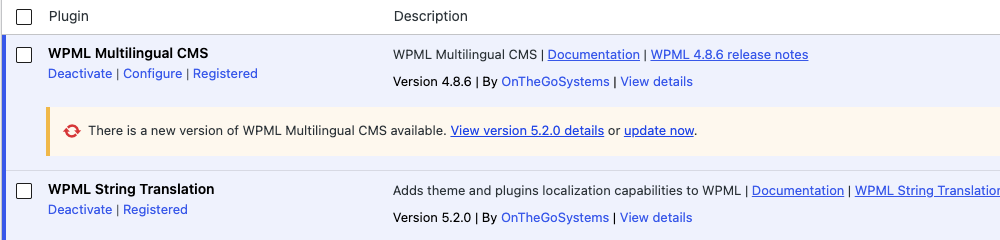
Go to Plugins → Installed Plugins and find WPML Multilingual CMS. The version number is under the plugin name. Use it to pick the right section below.
How to Turn Off Automatic Translation in WPML 4
Step 1: Switch the translation mode
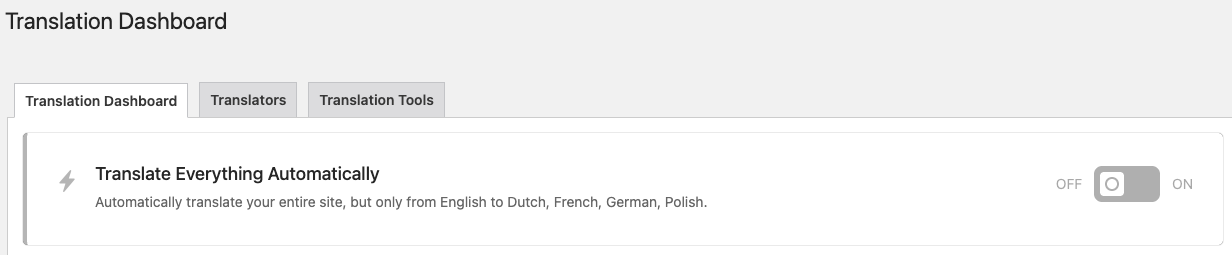
In WPML 4.7 and 4.8, the switch is on the Translation Dashboard:
- Go to WPML → Translation Dashboard.
- At the very top of the page, find the Translate Everything Automatically option.
- Turn it off.
Still on WPML 4.5 or 4.6? In these older versions the mode lives in the settings. Go to WPML → Settings, find the Translation Mode section, click Change mode, choose Translate what you choose and save. These versions are no longer current, so consider updating WPML first.
Pause is not the same as off. Since WPML 4.6 you can also pause automatic translation from the Translation Dashboard or the WPML status bar (WPML 4.6.0 release notes). A pause is meant to be temporary. If you want WPML to stop for good, switch the mode as shown above.
Step 2: Cancel jobs that are already in the queue
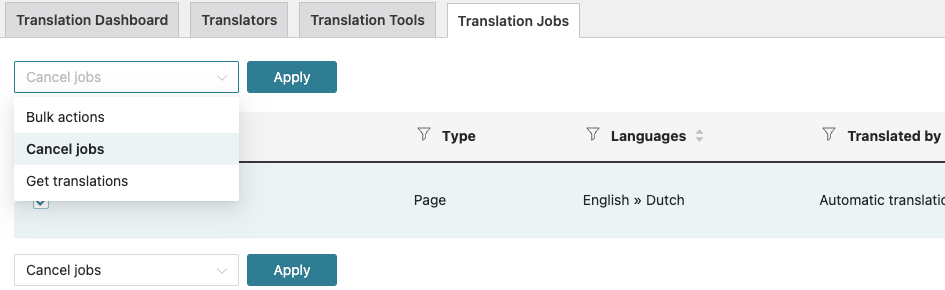
- Go to WPML → Translation Dashboard and open the Translation Jobs tab.
- Find the jobs that still need translation or are in progress.
- Tick the jobs you don’t want, choose Cancel jobs in the bulk actions list and click Apply.
Don’t see the Translation Jobs tab? It only shows up when there are jobs to list. WPML support also notes it can be hidden while Translate Everything is on, so finish Step 1 first.
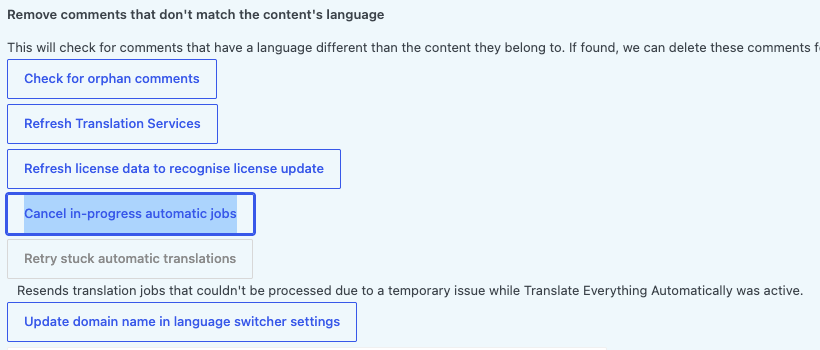
Jobs stuck “in progress” that you can’t cancel? Use the troubleshooting page:
- Go to WPML → Support.
- Find the sentence “For advanced access or to completely uninstall WPML and remove all language information, use the troubleshooting page.” and click the troubleshooting link in it.
- Click Cancel in-progress automatic jobs.
Step 3: Stop the Translation Editor from translating automatically
This is the step most people miss in WPML 4. Even with Translate Everything off, WPML can still translate a page automatically the moment someone opens it in the Translation Editor. Each time, it uses translation credits. This is a separate setting:
- Go to WPML → Settings and find the Multilingual Content Setup section.
- Find the question Do you want WPML to automatically translate all content when the Translation Editor opens?
- Change the answer from Yes, translate automatically as soon as the Translation Editor opens (uses more translation credits) to No, wait for me to start the translation.
- Click Save below the section.
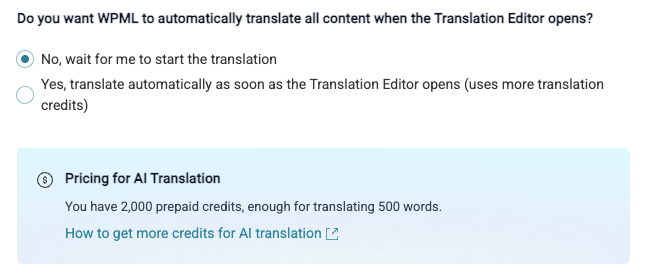
Now the editor opens empty, and translation starts only when you ask for it.
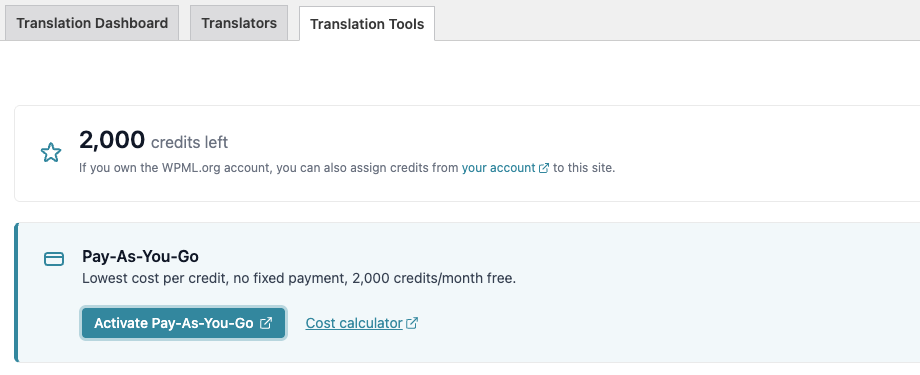
Want no paid automatic translation at all? Also check how WPML bills it. Open the Translation Tools tab on the Translation Dashboard. If pay-as-you-go is on and you don’t want it, turn it off there. When it is off, the tab shows an Activate Pay-As-You-Go button, like in the screenshot below. WPML can then only use the credits you already have.
Step 4: Test with one small edit
Open a low-risk post, change one word and click Update. Then go to WPML → Translation Dashboard. The post can show that its translation needs an update. That is fine: it is a status, not a job. No new job should appear in the Translation Jobs tab.
If a new job still appears, check who sent it: a translation service, a user with the Translation Manager role, or an add-on with automatic translation turned on. If the front end still shows an old translation, clear your page cache, CDN and browser cache before you change anything else.
How to Turn Off Automatic Translation in WPML 5
WPML 5 makes this simpler. The modes are now called Translate Everything and Translate Some, and you can switch between them at any time without losing translations (WPML Translation Dashboard docs).
- Go to WPML → Translations → Dashboard.
- On the Translate Everything Automatically card, open the three-dot menu and choose Turn off Translate Everything. WPML stops picking up new content (WPML docs).
- Check that the card now shows a Set up Translate Everything button.
- Go to WPML → Translations → Translation Jobs, filter by status and cancel unfinished jobs you don’t want (WPML Translation Jobs docs).
- Test with one small edit, as in Step 4 above.
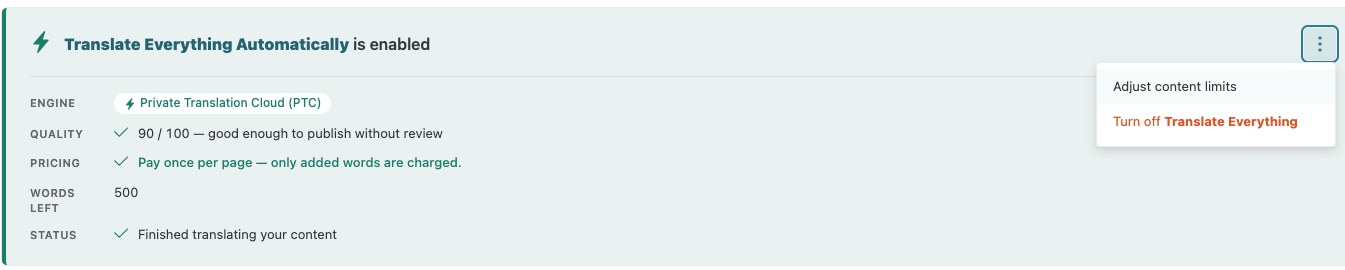
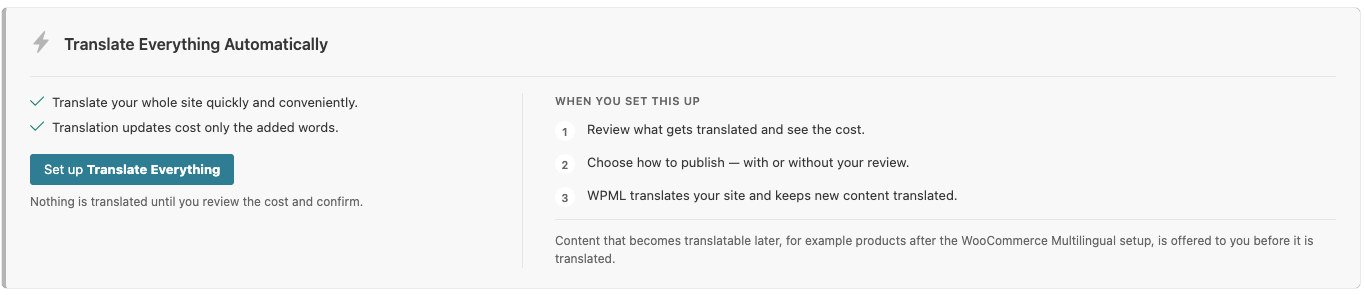
Only want to limit it, not stop it? The same three-dot menu has Adjust content limits. Use it to cap how much WPML translates without asking you first.
What Happens to Existing Translations and Costs
Your translations stay. Turning off automatic translation does not delete translated pages, posts, products or their language links, in WPML 4 or 5. You only lose them if you delete them yourself.
Words or credits you already used are spent. WPML does not describe a refund when you turn the mode off, so plan as if that budget is gone.
One trade-off in WPML 5. According to the WPML pricing docs, Translate Everything with PTC charges once per page and language. Later edits are free until the page grows past the highest word count you paid for. Translate Some and content you send manually pay per updated word, from €3.00 down to €0.40 per 1,000 words (checked 3 November 2026). If you edit the same pages often, manual sending can cost more than you expect. For a closer look, see our WPML pricing breakdown.
How to Translate Manually Without Surprises
With automatic translation off, you decide what gets translated and when. A few habits keep it under control:
- Send only the posts, pages, products or strings that really changed. Check the translation basket before you send.
- Look at the word count and estimate before you confirm. This matters most after an import or a site-wide edit.
- Give the Translation Manager role only to people who should start translation jobs.
- For pages that need a human check, use a review step before publishing.
- To keep single pages out of translation, see how to skip AI translation in WPML.
Translate Only What You Pick, With Your Own AI Key
Many people turn off automatic translation because of cost or control, not because they want to copy and paste translations by hand. LATW AI Translation for WPML is our add-on for this case. WPML stays: it still handles languages, URLs and translation links. The plugin only replaces the engine that does the translating.
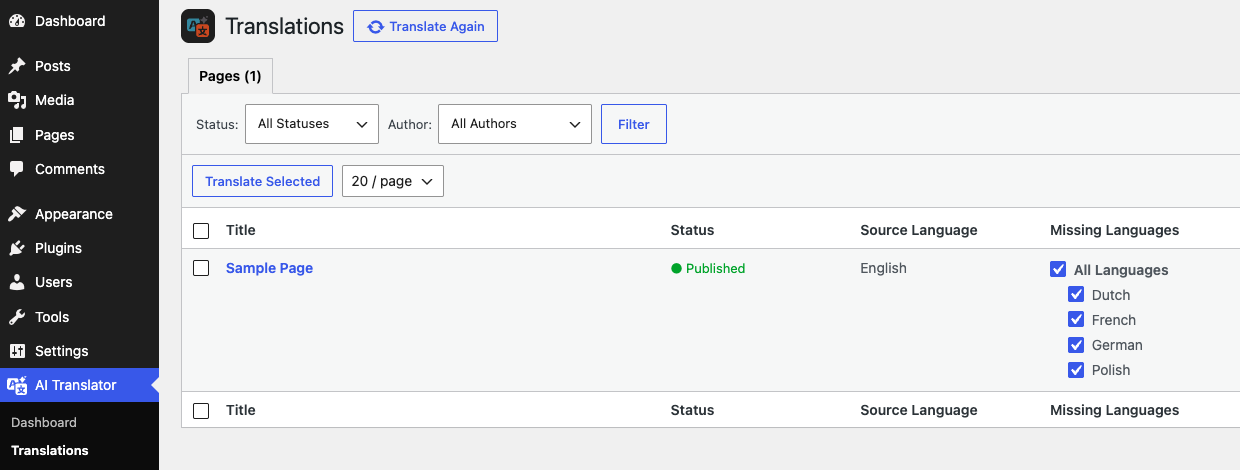
Nothing is translated on its own. Go to AI Translator → Translations, tick the languages you want under Missing Languages and click Translate next to the post. To send several posts at once, tick them and click Translate Selected. Only what you selected is sent.
- Your own AI key. Choose OpenAI, Claude, Gemini, DeepL, Google Translate or another engine. With your own key, content goes straight from WordPress to the provider, and you pay the provider’s raw price instead of WPML credits. If you don’t want to manage a key, pick LATW Cloud as the engine and pay per word.
- Cost per job. The translation history shows the model and the cost of every job, so you see what each translation really cost.
- Many items at once (Pro). Select a whole batch and send it in one go.
- Glossary (Pro). Brand names and product terms stay the same in every language.
What it costs in practice. Take 30 articles of about 3,000 words each, translated into 3 languages. Our calculator estimates €386.00 with WPML’s automatic translation and $0.45 with the plugin and GPT-5.4 nano on your own key. That is an estimate based on WPML’s tiered word rates and OpenAI’s token prices, checked on 3 November 2026. You can try your own numbers on the plugin page.
When WPML alone is the better fit: if you are happy with WPML’s own automatic translation, don’t want to manage an AI key, and edit the same pages often, Translate Everything with content limits can be simpler. It is a fair choice.
Checklist
- You know your WPML version (Plugins → Installed Plugins).
- The mode is off: Translate Everything Automatically off on the Translation Dashboard in WPML 4.7–4.8 (“Translate what you choose” in 4.5–4.6), or “Set up Translate Everything” visible in WPML 5.
- No unwanted jobs are waiting or in progress.
- WPML 4: Multilingual Content Setup is set to “No, wait for me to start the translation”, and pay-as-you-go is set the way you want.
- A test edit creates no new job.
- No add-on or service is set to translate new posts automatically, unless you want it to.
Your existing translations stay where they are. From now on, translation follows your publishing plan and does not start on its own.